
Draft and schedule posts
in ChatGPT with  Radi8
Radi8
How to connect ChatGPT
No Radi8 account yet? You can still install. You'll create one when Radi8 asks you to sign in.
-
Find Radi8 in ChatGPT
Open Plugins in ChatGPT and search for Radi8, or use the direct link to the Radi8 plugin.
-
Install the plugin
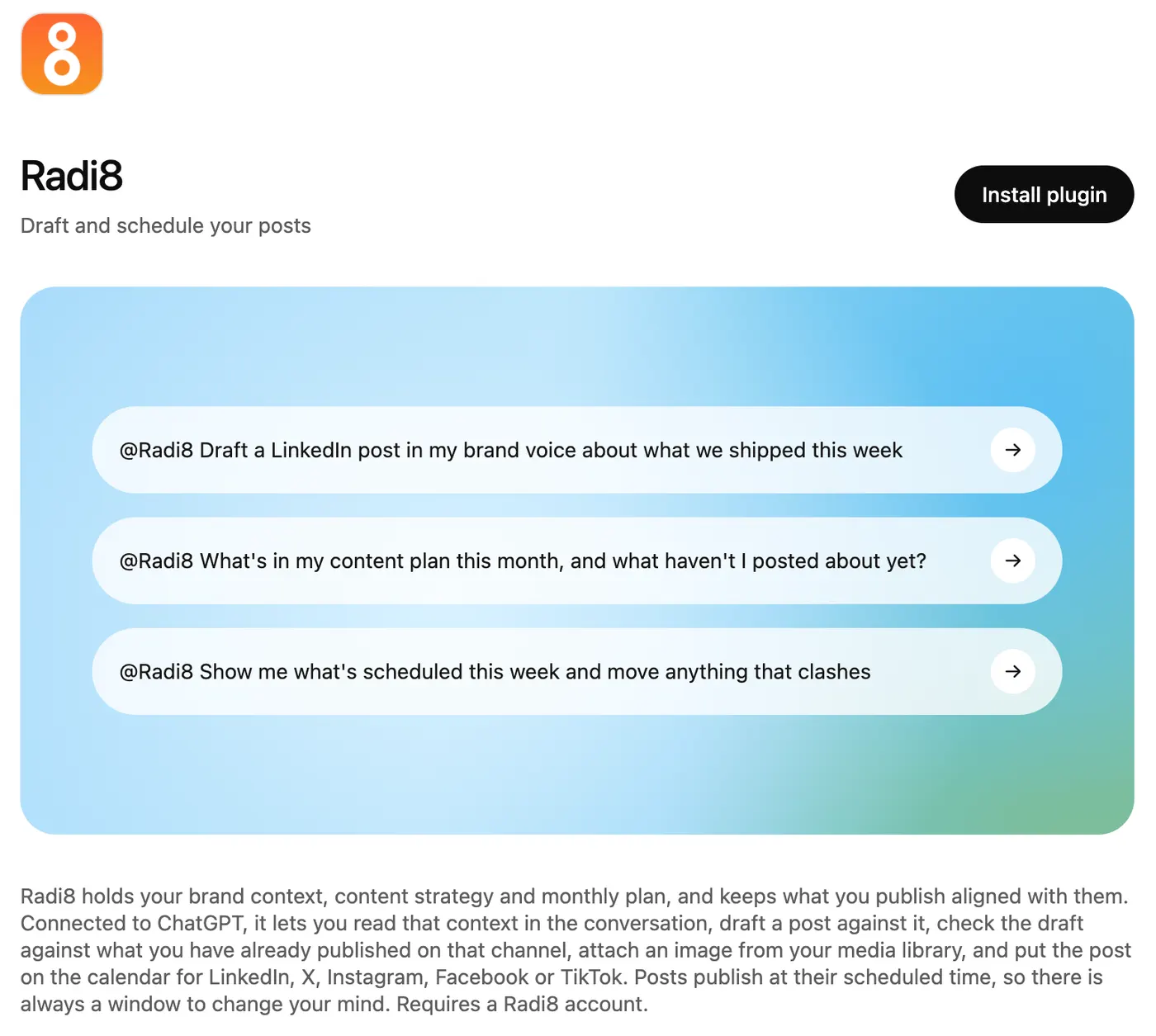
On the Radi8 plugin page, click Install plugin.
-
Sign in or sign up, then approve
ChatGPT sends you to Radi8. Sign in, or create a Radi8 account if you do not have one yet, and approve the connection. You land back in ChatGPT when it is done.
-
Use it in a chat
In any chat, type @Radi8 followed by what you want. Try:
@Radi8 What's in my content plan this month, and what haven't I posted about yet?
Stuck?
Open ChatGPT with a prompt that reads our install guide and walks you through it one step at a time.
Troubleshooting
Radi8 is connected but the chat does not use it.
Start a new chat. Connections made mid-conversation often are not picked up until the next one. In Claude, also check that Radi8 is switched on in the tools menu.
It is drafting for the wrong brand.
Radi8 opens on your Personal workspace. Ask the chat to list my Radi8 accounts and then switch to the company you want. It confirms which workspace is active before it writes anything.
Sign-in fails or Radi8 stops responding.
Disconnect Radi8 in your assistant's settings and connect again. You can also see and revoke every connection under Settings in the Radi8 app.
It says I am out of credits or need a subscription.
A new account comes with credits to try Radi8. Once they are used up, Radi8 needs a subscription to keep working. Sign in at app.radi8.com to pick a plan, then start a new chat.
Still stuck? Email support@radi8.com. What the connection can and can't do: connector reference.